Signal Is Blocking AI From Reading Your Screen — Here’s What Gemini and Siri Were Seeing

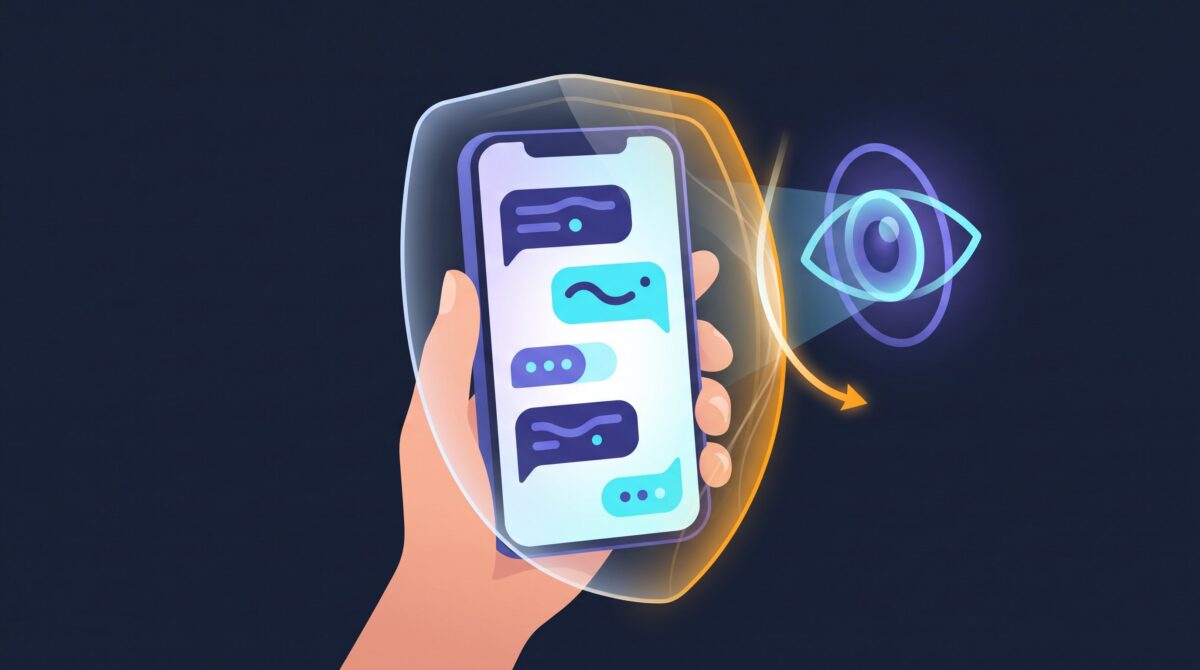
Signal just did something that sounds backwards: it started stopping you from taking screenshots inside the app. On iOS 27 it now blocks screenshots by default, and on Android it steps in whenever it can detect an AI assistant trying to grab what’s on your screen. The target isn’t your screenshot habit. It’s the AI assistant that now lives inside your operating system — and quietly reads whatever you’re looking at.
If you use AI every day, this is worth five minutes of your attention. Not because Signal is panicking, but because the thing it’s reacting to applies to almost every app on your phone.
What Signal actually changed
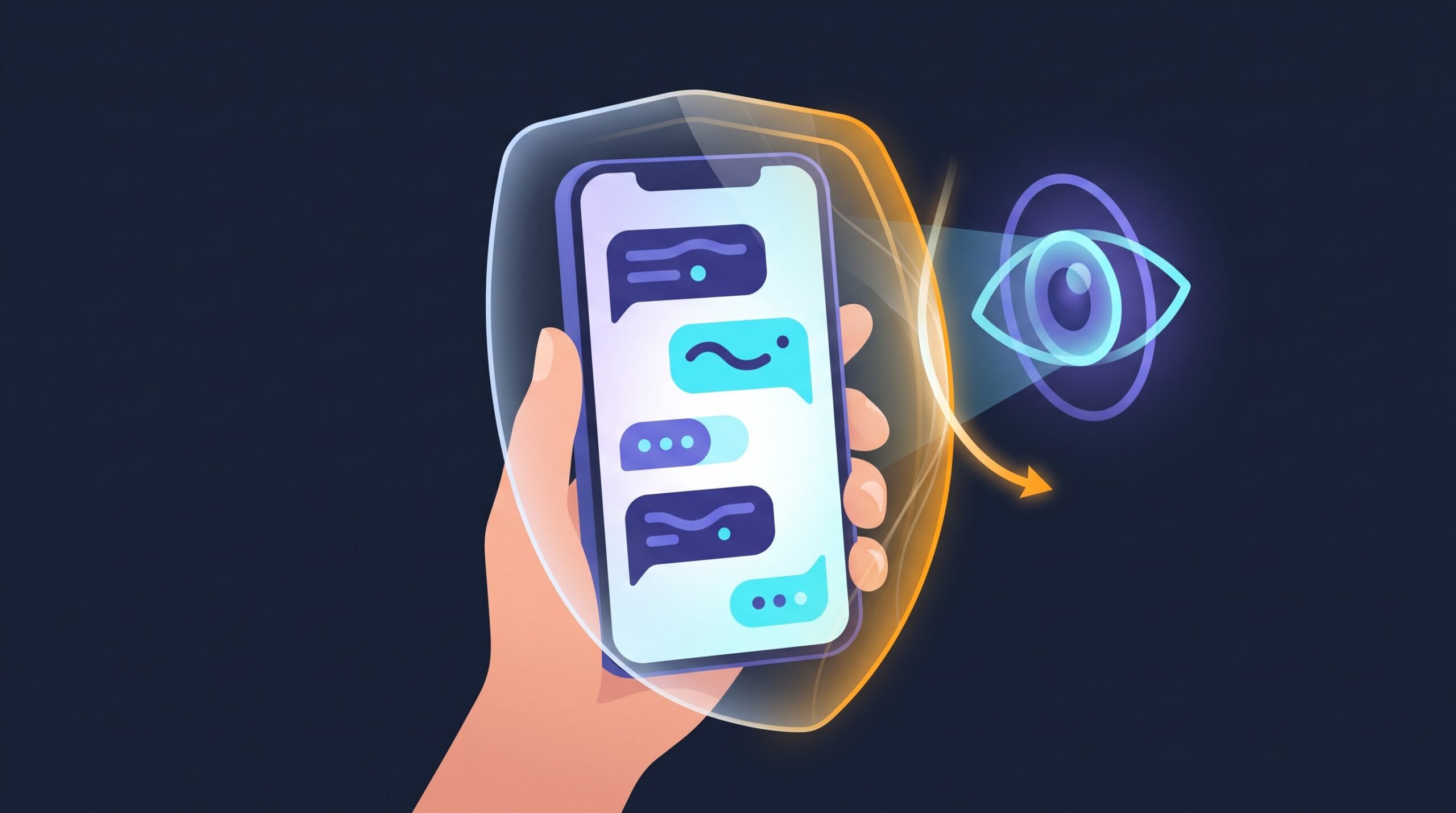
In a blog post bluntly titled on privacy, Signal said it is “restricting the latest AI agents built into mobile operating systems from potentially capturing and storing your Signal data.” In plain terms: on iOS 27, Signal blocks screenshots within the app and adds a new setting called Block Siri AI. On Android, it blocks screen capture when it can detect an AI assistant trying to read the Signal screen.
This isn’t Signal’s first time. Last year it used the same screenshot-blocking trick to stop Microsoft’s Recall feature from silently storing images of your Signal messages on Windows 11. The company is now doing the mobile version of that same defense — because the same kind of always-watching AI has moved from the desktop to the phone in your pocket.
The real problem: your phone’s AI reads your screen
Here’s the part most people haven’t clocked yet. Google’s Gemini Intelligence and Apple’s Siri “Onscreen Awareness” are designed to be genuinely helpful by understanding what’s currently on your screen. Ask “what does this mean?” or “add this to my calendar” and the assistant can answer because it has scanned the screen to see what you see.
That’s a real feature, and often a great one. But to do it, the assistant captures the contents of your screen — and once that content is captured, it can be made available to the AI system, stored in some local database or sent to a remote server, all outside the originating app’s control. For a messaging app whose entire reason to exist is that nobody outside the conversation can read it, that’s an existential problem. Signal’s encryption protects the message in transit and at rest; it can’t protect a screenshot the operating system took after the message was already decrypted and on your screen.
Why a screenshot is a bigger deal than it sounds
A screenshot feels harmless — it’s just a picture. But a picture of your screen is a perfect, unencrypted copy of whatever was on it: a two-factor code, a private message, a medical note, a one-time password, your home address. When you take that screenshot deliberately, you decide where it goes. When an OS-level AI takes it automatically to “understand context,” you’ve lost that decision. The content can be captured, stored, and processed somewhere you can’t see and can’t delete.
This is the same uncomfortable trade-off we’ve written about whenever AI gets handed the keys to something sensitive — from letting an AI assistant read your bank account to locking down the AI tools you run yourself. The capability is real and useful; the risk is that “convenient access to everything” and “privacy” are pulling in opposite directions, and the default usually favors convenience.
What you can do right now
You don’t need to be a security expert to close most of this gap. A few concrete moves:
- Leave Signal’s screenshot protection on. On iOS 27 it’s on by default. Signal lets you disable it if you really want to take screenshots — but doing so re-exposes your (and your contacts’) messages to those AI agents. Only turn it off when you genuinely need a screenshot, then turn it back on.
- Use the new Block Siri AI setting. On iOS 27, check Signal’s settings for the Block Siri AI option and keep it enabled.
- On macOS 27, exclude Signal from Siri. Signal can’t yet enforce this protection on the Mac, so its own recommendation is manual: go to System Settings > Siri and add Signal to the Excluded Apps section, which keeps your message content out of Siri’s proactive, on-screen reach.
- Audit your other sensitive apps. Signal is one app. Your banking app, your authenticator, your health records, and your email are all on the same screen the same AI can read. Check each one’s privacy settings and your OS-level assistant permissions, and decide deliberately what the assistant is allowed to see.
The honest caveats
Signal is refreshingly upfront that this fix is incomplete. Blocking screenshots stops one avenue, but it doesn’t stop every sneaky way an AI agent might reach app data — for example, reading files already sitting on your device through the filesystem. And because the operating systems don’t give developers a clean way to opt out without wrecking the normal user experience, Signal can’t even apply the screen protection on macOS yet.
That’s the crux: individual apps are improvising defenses because the platforms haven’t given them a real off-switch. Signal is openly calling on Apple, Google, and Microsoft to provide two common-sense things — an easy, well-documented way for an app to opt out of AI data access, and clear technical documentation of what these assistants actually do when they read app content. Until that exists, every app is left playing defense one feature at a time.
The bigger lesson for anyone using AI
None of this means screen-aware AI is bad. An assistant that can see your screen and act on it is genuinely useful — it’s the same idea that lets an AI agent log in for you without ever seeing your password, where access is designed to be scoped and private by default. The problem isn’t capability; it’s default-on capability that ingests everything without a deliberate yes.
The move that keeps you ahead of this isn’t fear — it’s intention. Treat screen-reading assistants like any other powerful tool: know what they can see, turn them loose where they genuinely help, and put a shield up where they don’t belong. Signal just drew that line for your private messages. It’s a good prompt to decide where you want to draw it for everything else on your screen. Used on your terms, AI amplifies what you can do; the trick is making sure you’re the one holding the switch.
Sources & further reading:
- Signal is Serious About Protecting Your Privacy (Signal Blog)
- Signal is fighting back against AI agents snooping on your private chats (Digital Trends)
Related Reading
- Apple Finally Fixed Siri: What the New Siri AI Can Actually Do for You
- The Hidden Text That Can Hijack Your AI Assistant — And How to Stay Safe
- AI Is Training on Your Data by Default — Here’s How to Turn It Off, Platform by Platform