Sign in with ChatGPT: What It Is, How It Works, and Whether You Should Actually Use It


You already know the drill. A new app asks you to make an account, and instead of inventing yet another password you tap “Sign in with Google” or “Continue with Apple” and you’re in. Now there’s a new button joining that lineup: Sign in with ChatGPT. OpenAI has turned your ChatGPT account into a login you can use across other apps and websites. It’s convenient, it’s spreading fast, and it raises a perfectly reasonable question — if I log into some random tool with my ChatGPT account, what exactly am I handing over? Let’s break it down in plain terms.

What “Sign in with ChatGPT” actually is
At its core, it’s a single sign-on button. Rather than creating a fresh username and password for an app, you log in using the ChatGPT account you already have. The app gets a trusted confirmation that you are who you say you are, and you skip the whole account-creation dance.
If you’ve used “Sign in with Google” this is the same idea, with OpenAI playing the role Google normally plays. The pitch is identical too: fewer passwords to remember, faster signups, and one account that unlocks many doors. The twist is simply which company is now sitting in the middle as your identity provider.
How it works under the hood (the 30-second version)
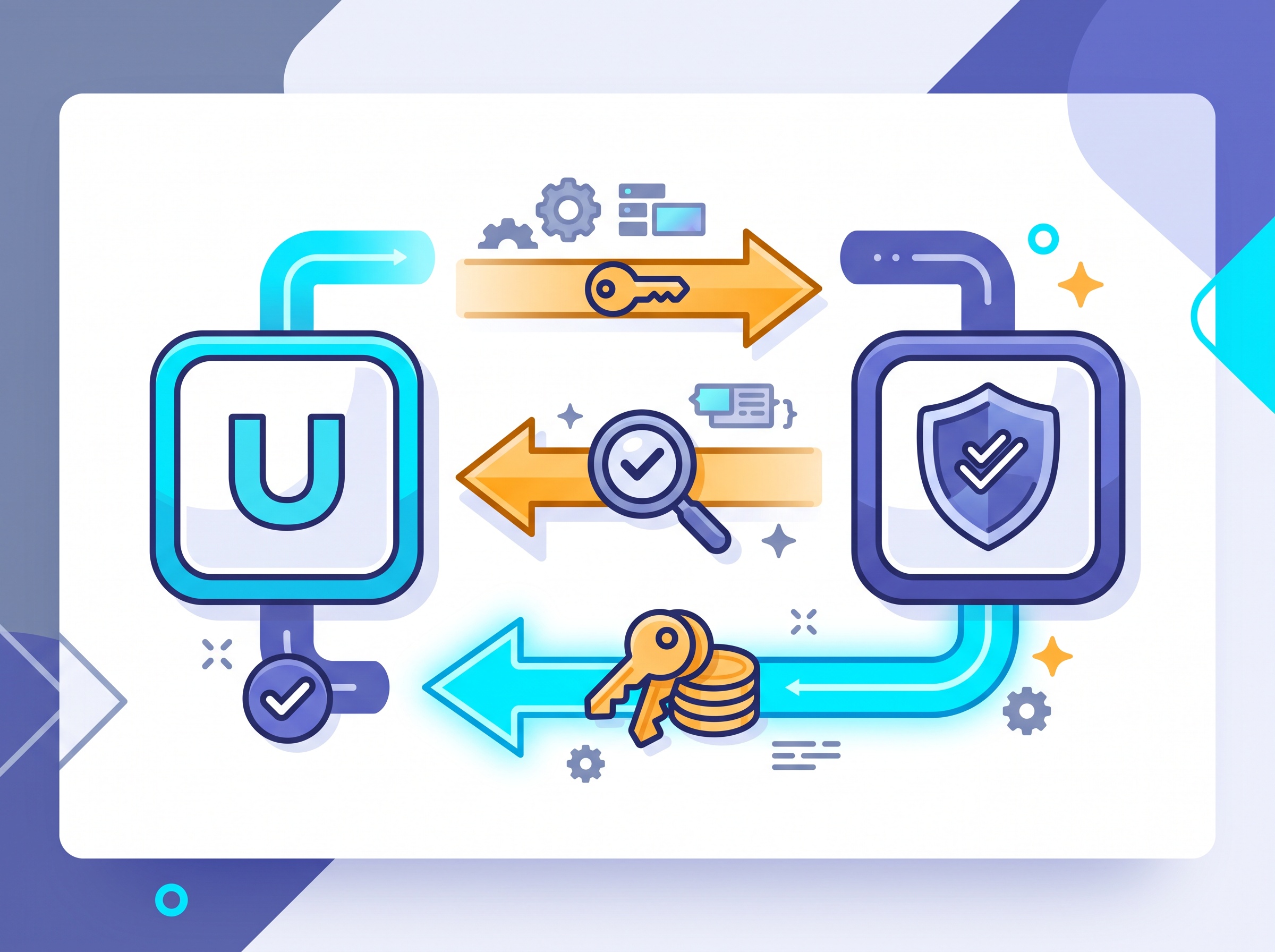
It runs on OAuth 2.0 — the same open standard that powers the Google, Apple, and Microsoft login buttons you already trust. Here’s the handshake, minus the jargon:
- You tap “Sign in with ChatGPT” in some app.
- You get bounced over to OpenAI, where you log in — on OpenAI’s page, not the app’s.
- OpenAI asks whether you want to let this app sign you in, and shows what it’s requesting.
- You approve, and OpenAI hands the app a signed token that basically says “yes, this is a verified user.”
The single most important consequence of this design: the app never sees your password. You type your credentials on OpenAI’s screen only. That’s genuinely a security win over making a brand-new account with a password you’ll probably reuse somewhere.
What the app gets — and what it doesn’t
This is the part people get wrong, so let’s be precise. When you sign in, the app receives a small bundle of identity information — essentially confirmation of who you are and the details needed to create or match your account on their side. In some cases it can also check your ChatGPT plan, so a tool can offer features based on whether you’re on a paid tier.
Here’s the reassuring part: signing in with ChatGPT does not, by itself, hand the app your conversations, your custom instructions, or your ChatGPT memory. Logging in proves your identity; it does not open a window into everything you’ve ever typed into ChatGPT. Any deeper access — like an app actually reading or using ChatGPT data on your behalf — would require separate permissions that you’d have to approve explicitly. This is the same model that lets an app connect to your other accounts; as we covered in our guide to ChatGPT becoming an app platform, connecting an app and handing it your data are two different steps.
So the mental model is: login is identity, not access. Your private chats stay behind their own lock.

The honest caveat: OpenAI sees the logins
There’s a trade-off worth naming. When OpenAI is your identity provider, OpenAI’s systems necessarily log the authentication events — which app you signed into, when, and from roughly what device or network. That’s not some sinister loophole; it’s how every single sign-on provider works, Google and Apple included. Running an authentication service means recording who authenticated where.
The practical implication is about centralization. Every app you connect with one button builds a fuller picture, at that provider, of the services you use. If you’re already deep in OpenAI’s ecosystem, that may bother you not at all. If you prefer to spread your digital life across providers, that’s a legitimate reason to pick a different login for some apps. Neither choice is wrong — it’s your call, made with open eyes.
Should you use it? A simple way to decide
You don’t need a rule; you need a quick gut-check at the consent screen. Ask yourself:
- Do I trust this app? SSO doesn’t launder a sketchy app’s trustworthiness. If you wouldn’t give the app your email, don’t give it a login either. A healthy dose of the skepticism we recommend in our guide to spotting AI scams applies to login buttons too.
- What is it asking for? Read the consent screen. Basic identity to create an account? Fine. Requests to access your data? Pause and decide if that’s warranted.
- Do I want this tied to my ChatGPT account? For a tool you’ll use constantly, convenience probably wins. For a one-off you’re just test-driving, a throwaway email might be the cleaner move.
- Can I undo it? Yes — and you should know how before you start, which brings us to the last point.
Stay in control: review and revoke
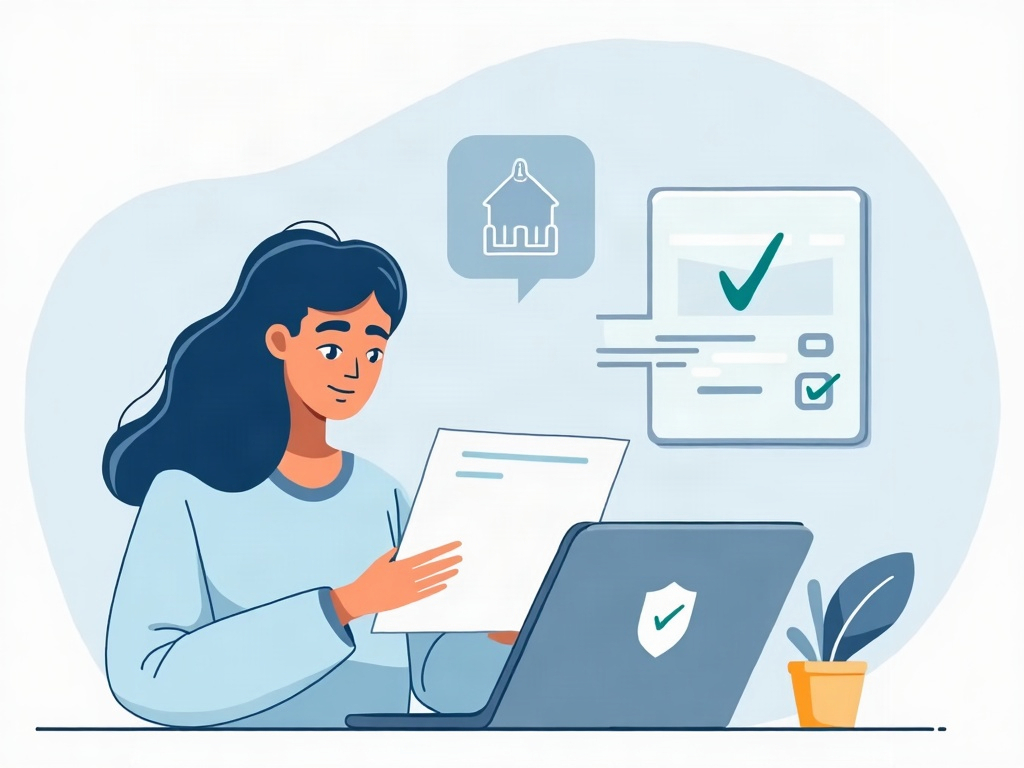
The beauty of SSO is also its risk: one account becomes the key to many. So treat that account like the master key it is. Put a strong, unique password and two-factor authentication on your OpenAI login — if that’s the key to a dozen apps, it deserves real protection.
Then, periodically, visit your OpenAI account’s connected-apps or security settings and look at what you’ve authorized over time. Anything you no longer use, revoke. Pulling access is a two-second click, and it immediately cuts that app off from using your account to sign you in. Doing a quick cleanup a couple of times a year keeps your “hub” tidy and your attack surface small — the same housekeeping discipline that keeps any set of connected AI tools from quietly sprawling.

“Sign in with ChatGPT” is neither a privacy trap nor a magic wand — it’s a convenience with a clear trade-off. It saves you passwords and keeps your credentials off sketchy apps, at the cost of making OpenAI a bigger hub in your digital life. Now that you know what it shares, what it doesn’t, and how to pull the plug, you can use it on your terms: tap it for the tools you trust, skip it for the ones you don’t, and keep that master account locked down tight. That’s what using AI deliberately looks like.
Sources & further reading:
Related Reading
- ChatGPT Can Now Text People For You: What the New Apple Messages Plug-in Does
- ChatGPT Is Becoming an App Platform: What OpenAI’s New Plugin Extensions Mean for You
- ChatGPT Can Now Read Your Gmail, Slack, and Notion: How App Connections Work — and How to Use Them Without Oversharing