ChatGPT Can Now Read Your Gmail, Slack, and Notion: How App Connections Work — and How to Use Them Without Oversharing

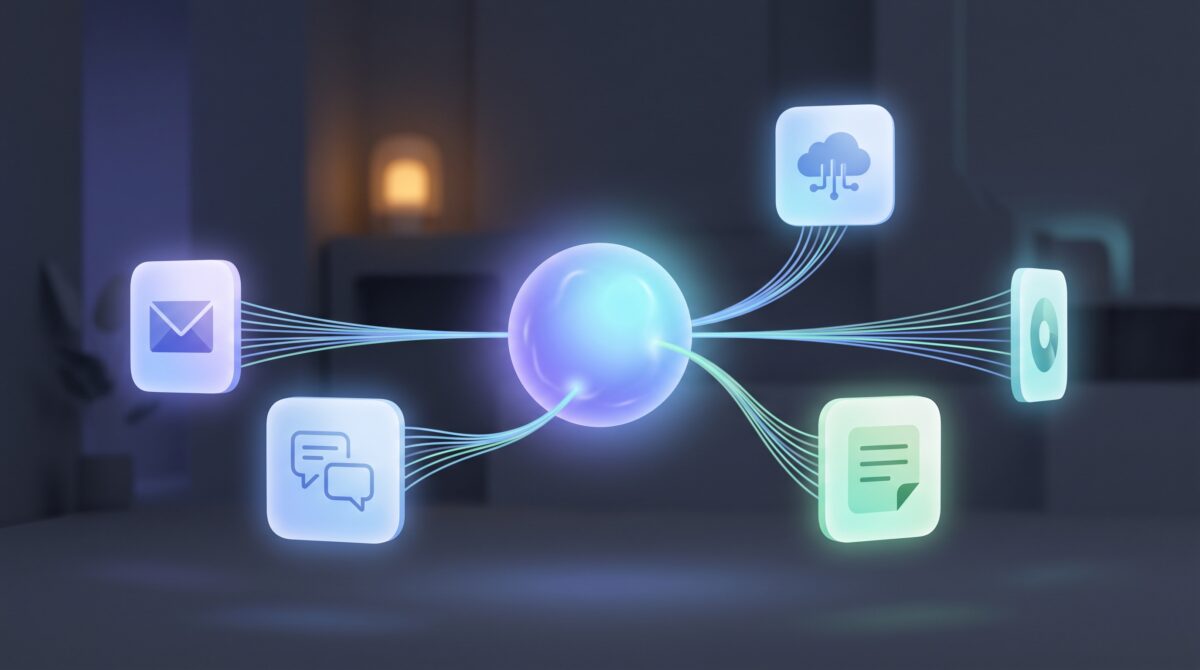
For years, the friction with ChatGPT was the same every time: it was brilliant, but it knew nothing about you. Every request started from a blank slate, so you spent half your time pasting in the email thread, the project notes, the doc it needed to see. That gap is closing fast. ChatGPT now plugs directly into the apps where your real work already lives — Gmail, Google Drive, Slack, Notion, OneDrive, SharePoint and more — and it can read from them to answer with your actual context instead of generic advice.
And OpenAI just pushed it a step further. According to a TechCrunch report, it’s testing a feature called “Writing Style” that connects to your personal apps, references your existing writing samples, and learns to draft in your own voice. Useful? Enormously. A little unsettling? Also yes — you’re pointing an AI at your inbox and your notes. So let’s walk through what these connections actually do, how to switch them on, and how to get the upside without quietly oversharing your whole digital life.
What “app connections” actually are
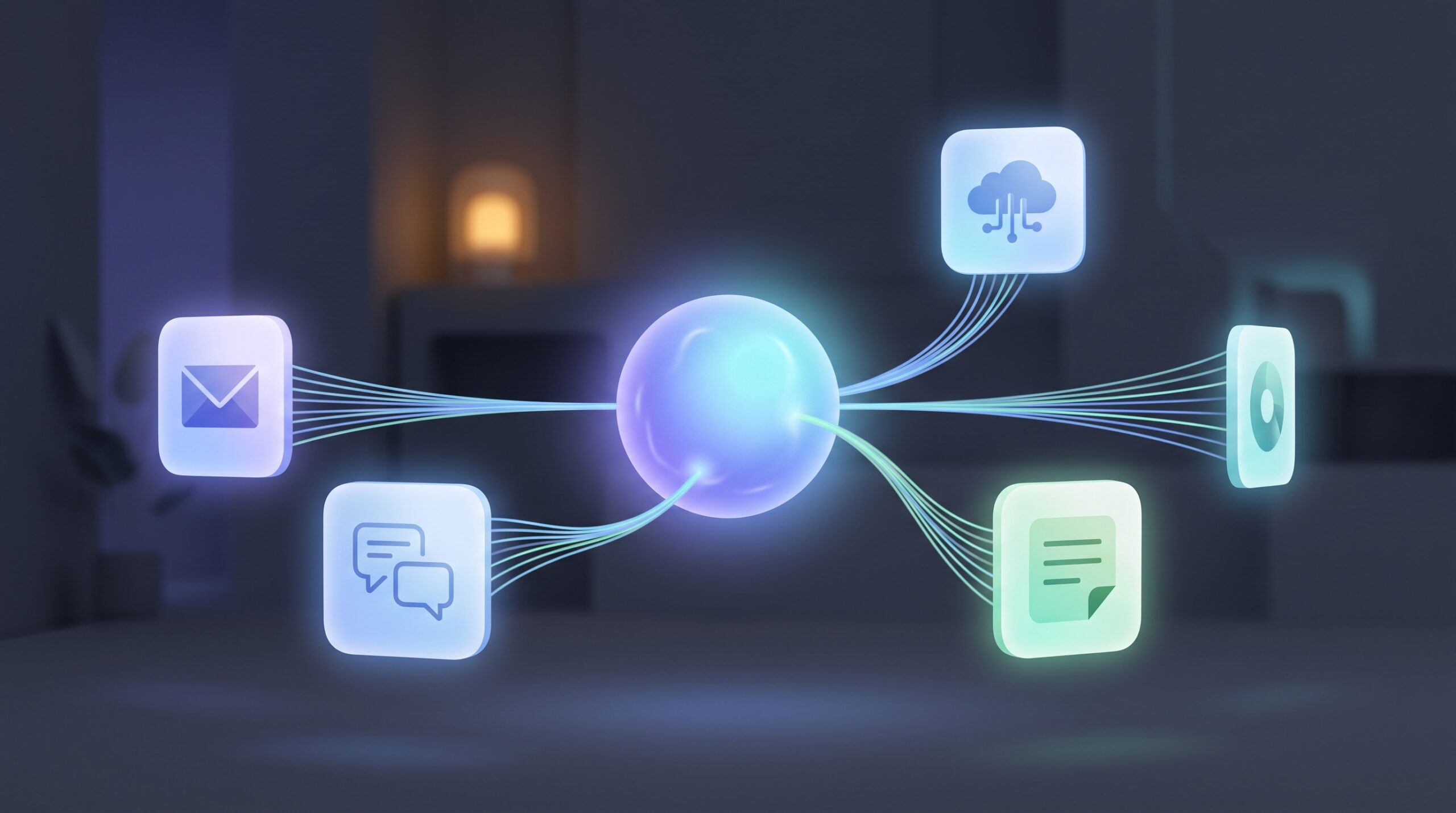
OpenAI renamed connectors to apps in late 2025, but the mechanic is simple and unchanged: you authorize a service, and ChatGPT can pull information from it. Once Gmail is connected, you can ask “what did the client say about the deadline?” and it reads the thread. Connect Google Drive or Notion and it can summarize a document, cross-reference two files, or answer from your own knowledge base instead of the open internet.
The important shift is that ChatGPT stops being a clever stranger and starts being an assistant with access to your filing cabinet. That’s exactly what makes it powerful — and exactly why the setup deserves a few minutes of thought rather than clicking “allow” on everything. This pairs naturally with putting the AI on autopilot for recurring work; if you haven’t seen it, ChatGPT’s scheduled tasks let it run these connected workflows on a timer.
The new Writing Style feature, explained
The headline addition is the one that reads your old messages. Rather than you describing how you write — or pasting in samples every time — the Writing Style feature looks at examples from your connected apps (think Slack messages, Gmail replies, Notion docs) and mirrors the patterns: your sentence length, your greetings, how formal or blunt you are, the phrases you actually use.
The payoff is drafts that sound like a human who happens to be you, not a corporate template. It’s the same goal we covered in our guide to training ChatGPT to write like you — except instead of a manual setup, it learns passively from what you’ve already written. The tradeoff is obvious and worth stating plainly: for it to learn your voice, it has to read your private messages. That’s a fair trade for some people and a hard no for others, which is the whole point of the controls below.

How to set up connections (and only connect what you need)
Turning connections on is quick; doing it well is about restraint. The single best habit is what security folks call least privilege: connect only the apps a given task actually needs, and nothing more.
- Open settings and find the Apps / Connectors area. You’ll see the available services — Google, Microsoft, Slack, Notion and others — each with its own “connect” button and its own permission prompt.
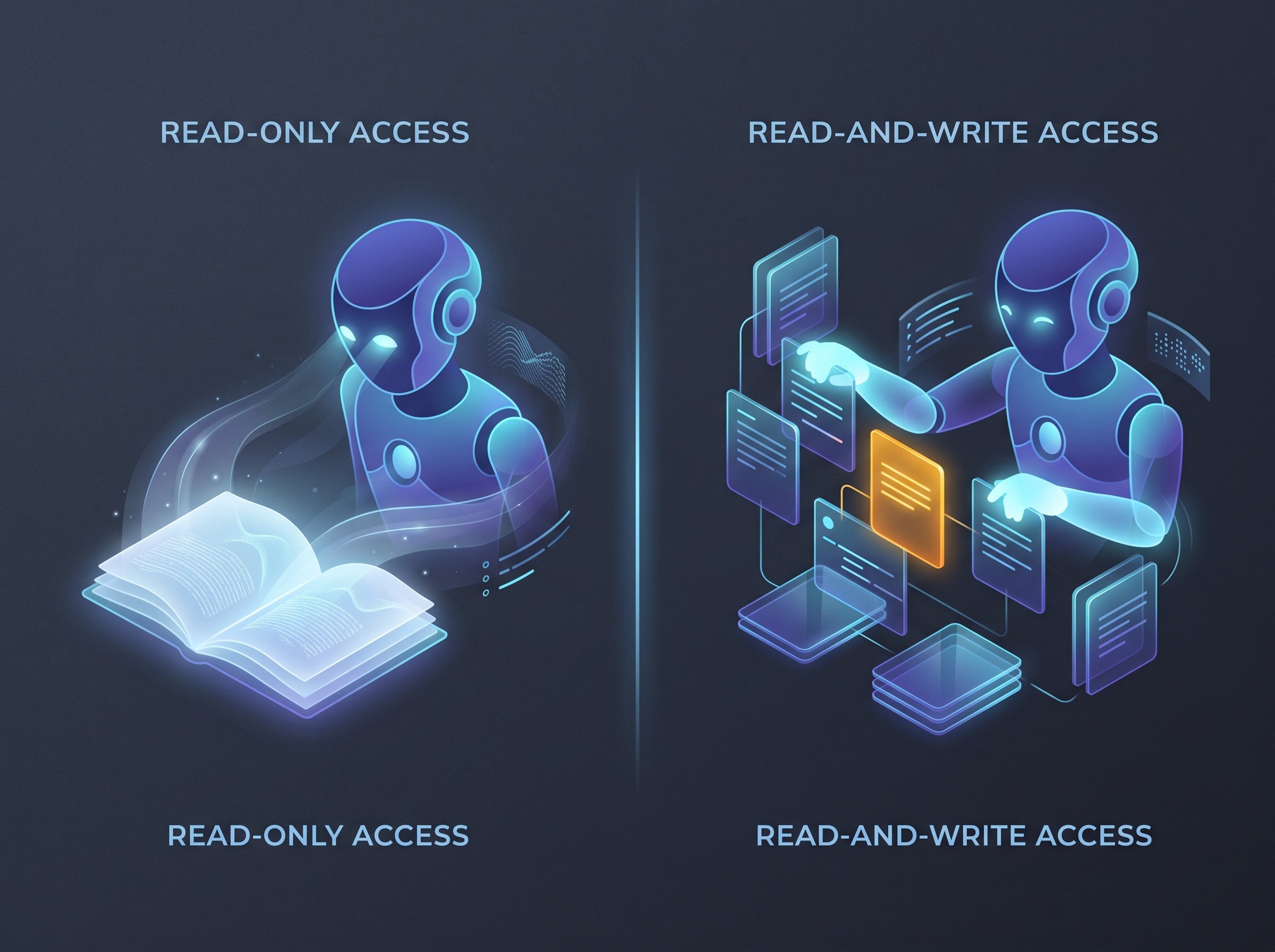
- Read the permission screen, don’t skim it. When you authorize, the service (not OpenAI) shows you what you’re granting. This is the real gate. If a connection only needs to read your files, don’t grant it the ability to change them.
- Start with one. Connect the app tied to whatever you’re doing this week — Drive if you live in documents, Gmail if your work is in your inbox — use it, and get a feel for what it can see before you wire up the rest.
- Prefer work-scoped over everything-scoped. If a connector lets you limit access to a specific folder, workspace, or label, do that instead of granting your entire account.
The difference between “read my calendar” and “manage my calendar” is not a technicality — it’s the difference between an assistant that informs you and one that can act on your behalf. Grant the smaller one until you have a concrete reason to grant the larger.

The privacy questions worth actually asking
You’re connecting an AI to your most personal data, so a little healthy suspicion is just good hygiene. Three questions cover most of it:
- What can it see — and can it change things? Read access means it can look. Write access means it can send, edit, or delete. Know which you granted, and revoke anything broader than you’re comfortable with.
- Is my data used to train the model? This depends on your plan. For ChatGPT Business, Enterprise, and Edu, OpenAI states it does not use information accessed through connectors to train models by default. On personal plans, check your current data-control settings rather than assuming — and turn training off if you want your connected data left out.
- How do I pull the plug? Every connection can be revoked, from ChatGPT’s settings and usually from the source app’s security page too. If a workflow is done, or a feature is just a test you tried once, disconnect it. An unused connection is pure downside.
None of this is a reason to avoid connections — it’s how you use them like an adult. The convenience is real; so is the access you’re granting, and the two deserve equal attention.
Where this is genuinely worth it
Used with a bit of discipline, connected apps fix the most tedious part of working with AI: giving it context. A few workflows that go from painful to trivial once you’re set up:
- Inbox triage: “Summarize everything unread from this client and draft a reply in my usual tone.”
- Document synthesis: point it at two Drive files and ask what changed, or have it turn a messy Notion page into a clean brief.
- Meeting prep: “Pull the last three Slack threads with this person and give me the three things I need to remember.”
- Voice-matched drafts: with Writing Style on, replies and posts come out sounding like you wrote them on a good day.
Each of these is a small thing that you do constantly, and shaving the friction off constant small things is where AI quietly pays for itself. It also gets better as the underlying models do — the same reasoning gains behind the latest GPT-6 Astra release make ChatGPT noticeably sharper at pulling the right detail out of a connected inbox or drive.
Frequently asked questions
What can ChatGPT connect to right now? The common connectors include Google (Gmail, Drive, Calendar), Microsoft (Outlook, OneDrive, SharePoint), Slack, and Notion, with more added over time. Availability varies by plan — some write-capable and custom connectors are limited to Business, Enterprise, and Edu tiers.
Does the Writing Style feature read all my messages? It references writing samples from the apps you connect to learn your style. You control which apps it can access, so if you don’t want it reading a particular inbox or workspace, don’t connect that one — or disconnect it afterward.
Will OpenAI train on my connected data? For Business, Enterprise, and Edu, OpenAI says connector data isn’t used for training by default. On personal plans, check your data-control settings and disable training if you want your connected content excluded.
How do I remove a connection? Revoke it in ChatGPT’s Apps/Connectors settings, and for full cleanup, also remove ChatGPT’s access from the source app’s own connected-apps or security page.

The takeaway
Connected apps are the upgrade that finally gives ChatGPT what it always lacked — context about your actual work — and the Writing Style feature makes its output sound like you instead of a robot in a suit. That’s a real leap in usefulness. It just comes with a real ask: you’re handing an AI a key to your inbox, your files, your notes. So take the two minutes. Connect what a task needs, read the permission screen, keep training off if that matters to you, and disconnect anything you’re not actively using. Do that, and you get an assistant that already knows the details — without wondering what, exactly, it’s been reading.
Sources & further reading:
- ChatGPT can now connect to your personal apps to mimic writing style (TechCrunch)
- Connected apps on ChatGPT (OpenAI Help Center)
Related Reading
- ChatGPT Is Becoming an App Platform: What OpenAI’s New Plugin Extensions Mean for You
- Sign in with ChatGPT: What It Is, How It Works, and Whether You Should Actually Use It
- ChatGPT Can Now Text People For You: What the New Apple Messages Plug-in Does