ChatGPT Can Now Text People For You: What the New Apple Messages Plug-in Does


For years, the pitch for AI assistants was “ask a question, get an answer.” That era is ending fast. On August 20, OpenAI quietly shipped one of its most personal features yet: a plug-in that lets ChatGPT read, search, draft, and send your text messages through Apple’s Messages app on the Mac. In other words, ChatGPT can now text people for you. That is genuinely useful — and it is also the kind of power worth understanding before you switch it on. Here is exactly what it does, who can use it, and the one setting you should never turn off.
What the Apple Messages plug-in actually does
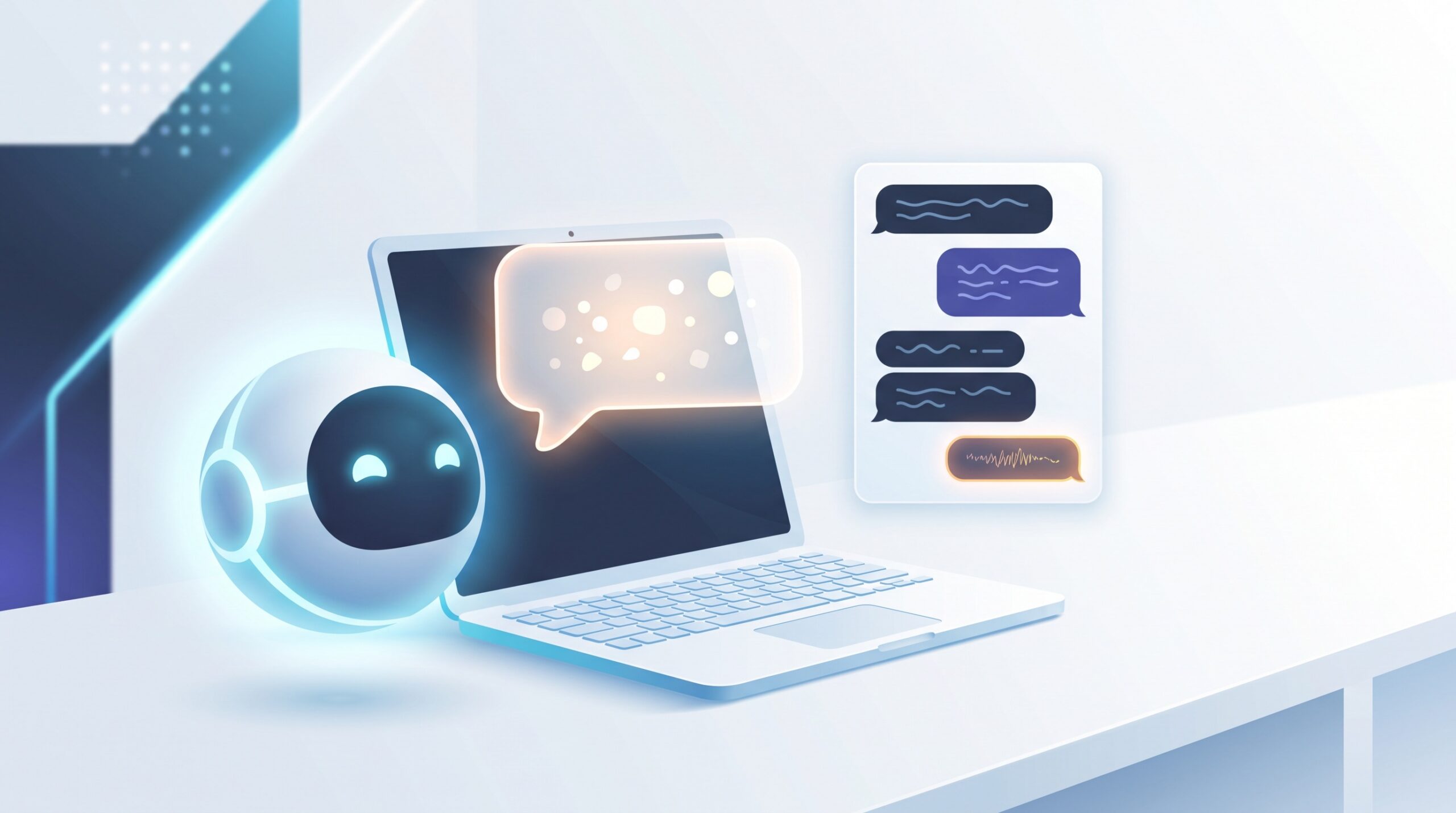
The new plug-in connects ChatGPT to the Messages app already installed on your Mac. Once enabled, ChatGPT can read and search your conversations and prepare and send messages on your behalf — and it works across all three of Apple’s messaging types: iMessage, SMS, and RCS. So it is not limited to blue-bubble chats with other Apple users; it can reach the green-bubble texts to Android friends too.
Practically, that means you can ask things like “catch me up on my thread with the plumber” or “reply to Dana that I’ll be ten minutes late,” and ChatGPT will pull up the conversation, draft the response, and — with your go-ahead — fire it off. It is the difference between an assistant that talks about your messages and one that actually handles them.
Who can use it — and the fine print
The good news: it is available on every ChatGPT plan, free tier included. The catches are all about hardware and location:
Mac desktop app only. This lives in the ChatGPT desktop app for macOS. It is not on iPhone, not on the web, and it does not work inside regular ChatGPT chats in a browser.
Apple silicon only. For now it runs on Apple silicon Macs (M-series chips), not older Intel machines.
It is not a remote texting bot. A common misread of the headlines: this does not let you message ChatGPT from your phone and have it text people while you are away. It operates on the Messages app sitting on your Mac, right in front of you. The plug-in surfaces inside ChatGPT’s newer “work” and Codex modes rather than a casual chat window — but you do not need to be a developer to use it.

How to turn it on
Setup is deliberately simple, and deliberately permission-gated:
1. Update the ChatGPT desktop app on your Apple silicon Mac to the latest version.
2. Open the plug-ins or connectors section and enable the Apple Messages plug-in.
3. Grant ChatGPT permission to access Messages when macOS prompts you. This is a normal Mac privacy permission, and you can revoke it anytime in System Settings.
4. Try a low-stakes request first — “summarize my last chat with Mom” — to see how it behaves before you trust it with anything you would not want misfired.
If the idea of granting an AI access to your accounts feels familiar, it should. This is the same wave of “assistants that do things” we covered when Google’s AI Mode gained connected apps, and it rides on the same underlying shift toward standardized connectors that let AI assistants plug into your tools. Every one of these connections is a convenience and a responsibility at the same time.

The one setting you should never turn off
Here is the part OpenAI itself flags in bold, and it deserves your full attention. By default, ChatGPT will not send anything until you approve both the message and its recipients. You see the draft, you see who it is going to, and only then does it leave your Mac. That approval step is the entire safety model.
The app also lets you switch on persistent approval — a “stop asking me every time” option, on a per-conversation basis. It is tempting, and OpenAI explicitly warns against it. The moment you disable that final review, you hand an automated system the ability to send texts as you, with no human glance in between. OpenAI has even acknowledged a known issue where certain scheduled tasks can disable those approval prompts. Translation: leave the confirmation on. The few seconds it costs you are the whole point.
This caution is not paranoia — it is the practical lesson from a year of AI security scares. An assistant that can send messages on your behalf is exactly the kind of powerful connection that attackers probe, which is why it pays to understand how hidden instructions can hijack an AI assistant before you give one the keys to your inbox.

Where it genuinely helps
Set the hype aside and the useful cases are real:
Digging through long threads. “What address did the contractor send me last week?” is a perfect job for search-and-summarize — far faster than thumb-scrolling months of history.
Drafting the reply you keep putting off. Ask it to write a polite decline, a warm thank-you, or a firm follow-up, review the wording, and send. You still sound like you; you just skip the blank-page stall.
Batching your admin. Coordinating a group, confirming appointments, chasing an unanswered question — ChatGPT can tee up several messages and let you approve them in a row.
Notice the pattern: the assistant does the tedious reading and drafting, and you keep the judgment. That is the sweet spot, and it is worth being just as thoughtful about how quickly AI is being woven into the everyday tools we already use.

The takeaway
Letting ChatGPT into your Messages is a small preview of where AI assistants are heading: less “answer my question,” more “handle this for me.” Used well, it clears out the low-value texting chores and hands you back the minutes. Used carelessly — approvals off, permissions unreviewed — it is an automated system speaking in your name. The move is simple: turn it on, keep the confirmation prompt firmly in place, and let it draft while you decide. Amplify your reach, not your risk, and stay the person whose name is on the message.
Sources & further reading:
- ChatGPT can now send texts for you with new Apple Messages plug-in — TechCrunch
- ChatGPT update adds Apple Messages integration on Mac — 9to5Mac
Related Reading
- ChatGPT Just Went Unlimited for Free Users: What You Can Actually Do With It Now
- ChatGPT Health Is Here: The AI Medical Assistant That Could Save Your Life
- Apple Finally Fixed Siri: What the New Siri AI Can Actually Do for You