ChatGPT Can Now Build Your Slide Deck: Turn a Chat or a Pile of Files Into a Finished Presentation


If you have ever asked ChatGPT to “make me a presentation,” you know how the old trick went: it handed you a tidy outline, maybe some bullet points slide by slide, and then left you to open PowerPoint and do the actual building yourself. Helpful, sure. But it was a glorified first draft, not a deck.
That changed with a recent update. ChatGPT can now produce a real, editable presentation – laid-out slides with headings, images, shapes, tables, and charts – that you can keep editing inside ChatGPT and then export to PowerPoint or Google Slides. It is the difference between being handed a recipe and being handed dinner. Here is how to actually use it, and how to get a deck that doesn’t scream “an AI made this in four seconds.”

What’s genuinely new here
The key shift is that the output is a slide object you can manipulate, not a block of text describing slides. ChatGPT builds the presentation into a workspace, and from there you can edit the text, swap images, resize shapes, and adjust tables and charts directly – the same things you would do in any slide app, except the first 80% is already done.
This lands in the same family of moves we have watched all year, where the assistant stops talking about work and starts producing it. It is the slide-deck cousin of the shift we covered when Claude started building docs and slides right inside the chat. The useful mental model: you are no longer prompting for instructions, you are prompting for a finished artifact.
The fastest way to start
There are two natural entry points, and which one you pick depends on where your material already lives.
- From a conversation you are already in. If you have been talking through a topic – a project update, a pitch, a lesson plan – just ask: “Turn this into a presentation.” ChatGPT uses the thread as the raw material, so the deck inherits everything you have already hashed out.
- From scratch. Ask for a slide or a deck and then describe three things: the topic, the audience, and the material it should cover. Those three inputs do most of the heavy lifting – “a 10-slide overview of our Q3 results for the sales team, upbeat, focused on wins and next steps” gets you somewhere far better than “make slides about Q3.”
Either way, the more specific you are about audience and tone, the less generic the result. The same habit that gets you better answers everywhere applies here too; if you have not read it yet, our guide to getting a better response every time is the single highest-leverage thing you can do before asking for a deck.
Feed it your own files
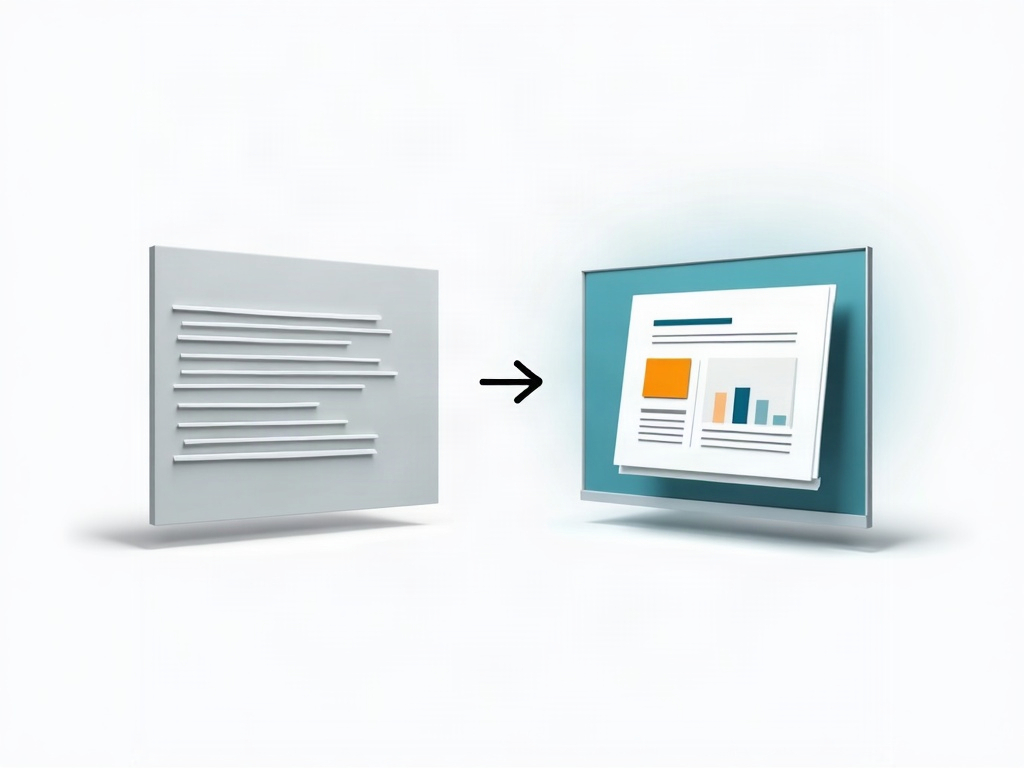
This is the part that turns a novelty into a genuine time-saver. You can attach source files – a messy report, a spreadsheet of numbers, a few pages of notes – and have ChatGPT build the presentation around that content rather than inventing filler.
That means the chart on slide 6 can come from your actual spreadsheet, and the summary on slide 2 can be drawn from your real report instead of generic placeholder prose. For anyone who has spent an evening copying figures from a spreadsheet into slides one cell at a time, this is the win. Hand it the data, tell it what story the data should tell, and let it assemble the scaffolding.
Editing and restyling without the busywork
Once the deck exists, you are not stuck with version one. You can edit any element directly – rewrite a headline, drop in a different image, fix a number in a table. But the more powerful move is editing by instruction: “make slide 4 less wordy,” “turn this list into a two-column comparison,” “give the whole deck a cleaner, more corporate look.”
Restyling in particular is where the time savings compound. Changing a theme by hand in a traditional slide app means touching every slide; here you describe the look you want and the whole deck shifts at once. You can even point it at an example deck so it matches a house style – handy if your team has a template everyone is supposed to follow.

Getting it out: PowerPoint and Google Slides
A deck you cannot get out of the tool is a trap, so the export path matters. ChatGPT lets you take the finished presentation out as a PowerPoint file or to Google Slides, which means it slots into whatever your workplace actually runs on. You are not locked into presenting from inside ChatGPT.
Practical note: treat the export as a strong draft, not a final file. Fonts, spacing, and the occasional chart can shift slightly when a deck moves between apps, so always open the exported file once and give it a quick pass before you stand up to present. Ninety seconds of cleanup beats a surprise on the projector.
How to get a deck that doesn’t look AI-generated
The failure mode of every AI deck builder is sameness – the same safe layout, the same vague bullets, the same stock-feeling imagery. A few habits fix most of it:
- Give it a real narrative, not a topic. “Three problems, one solution, what it costs” produces a sharper deck than “overview of our product.” Tell it the arc.
- Cap the slide count. Ask for fewer slides than you think you need. AI loves to pad; a tight 8-slide deck beats a bloated 20.
- Kill the bullet soup. Explicitly ask for one idea per slide and short lines. Then tell it to turn the densest slide into a visual – a simple diagram or a single big number.
- Bring your own data and voice. Attach real numbers and ask it to write in a plain, specific tone. Generic in, generic out.
- Do the last 10% yourself. Fix the one awkward headline, replace the one weak image. The deck gets you to the finish line; you still cut the ribbon.
If you are building presentations regularly, pair this with a reusable setup so you are not re-explaining your style and audience every time – the same logic behind using ChatGPT Projects and memory to stop repeating yourself. Save your template, your tone, and your audience once, and every future deck starts closer to done.
Who this actually helps
Not everyone needs this, and that’s fine. But if you are a teacher turning a lesson into slides, a small-business owner building a pitch without a design team, a manager who has to present numbers you would rather spend ten minutes on than two hours, or a student assembling a project deck the night before – this collapses the boring middle of the job. The thinking stays yours. The formatting, the layout, the first-draft design? Handed off.
That is the whole promise worth caring about with tools like this. The point was never to let an AI present for you. It is to get you from a blank slide to a solid draft fast enough that you can spend your real energy on the part only you can do – knowing your audience, telling the truth about your numbers, and walking in ready.

Sources & further reading:
Related Reading
- Stop Repeating Yourself: How to Use ChatGPT Projects and Memory to Save Hours
- AI Presentation Tools in 2026: Create Professional Slides in Minutes, Not Hours
- Claude Now Builds Your Docs and Slides in the Same Chat: What Anthropic’s New One-Window Setup Means for You