Passkeys, Explained: Set One Up Before Microsoft Kills the Texted Code

Here is a rare piece of tech news that is unambiguously good for you: Microsoft is making passkeys the default way to sign in, and it is retiring the old habit of texting or calling you a verification code. The texted code — the thing you squint at, copy, and paste back in — officially goes away on February 1, 2027. If “passkey” is still a fuzzy word to you, this is the two-minute explainer, plus how to set one up today instead of waiting to be forced into it.
What a passkey actually is
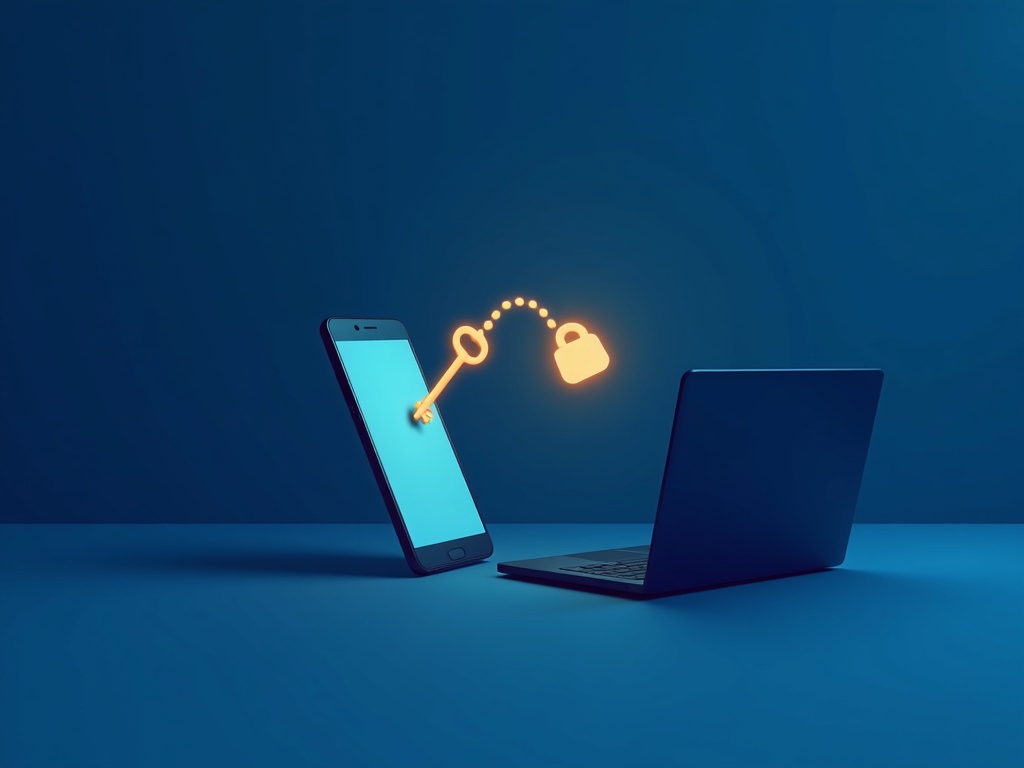
A passkey is a login that lives on your device — your phone, your laptop — and is unlocked by the thing you already use to open that device: a fingerprint, a face scan, or a PIN. There is no password to remember and no code to type. Behind the scenes, your device holds a secret key that never leaves it, and it proves your identity to the website without ever sending that secret across the internet.
That last part is the whole magic. The reason passkeys are safer is not that they are fancier — it is that there is nothing to steal in transit.
Why it beats the code you copy-paste
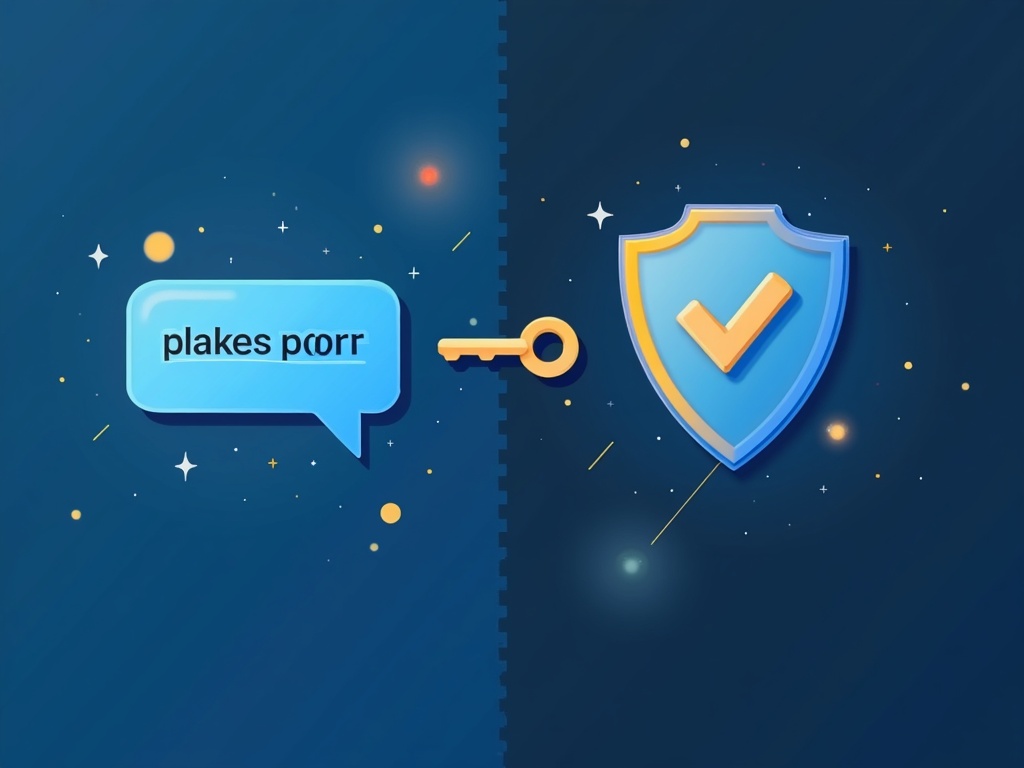
Think about how a texted code can go wrong. A fake login page that looks exactly like the real one asks for your password and your code, then instantly uses both on the real site — you handed the keys to a stranger without realizing it. That is phishing, and it works on codes every single day. Codes can also be intercepted, and your phone number itself can be hijacked through a “SIM-swap,” where someone talks your carrier into moving your number to their phone.
A passkey shrugs off all of these. There is no code to type into a fake page, nothing reusable to intercept, and no phone number in the loop to steal. Even if you land on a perfect clone of a login page, your passkey simply will not work there — it is tied to the real site’s identity. It is, in the truest sense, phishing-resistant.
What Microsoft is changing, and when
Two dates matter. On September 1, 2026, passkeys become the default across Microsoft accounts; if you still use SMS or voice codes, you will be automatically set up for passkeys and nudged to create one next time you log in. On February 1, 2027, Microsoft’s own texted and spoken codes are retired for good. You do not have to wait for either date — and honestly, you should not.
How to set up a passkey in two minutes
For your Microsoft account, the flow looks like this:
- Go to your account security settings (for Microsoft, that is the “My Sign-ins” / security info page).
- Choose add a sign-in method and pick passkey.
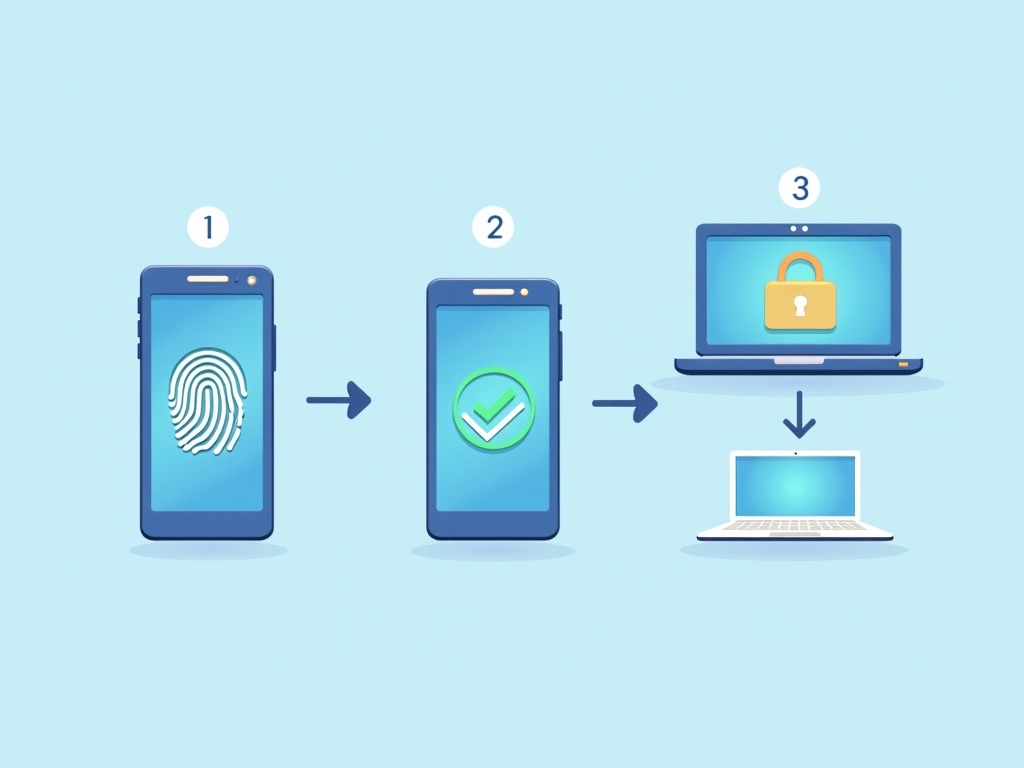
- Your device prompts you to confirm with a fingerprint, face scan, or PIN. That is the moment the passkey is created.
- You are done. Next time you sign in, you just approve with the same fingerprint or face — no password, no code.
The exact wording differs slightly across phones and browsers, but the pattern is always the same: add a passkey, confirm with your biometrics, and it is live.
The one thing people forget: a backup
Because a passkey lives on a device, losing that device shouldn’t lock you out — so set up a second one. Register a passkey on both your phone and your laptop, or save it to a password manager that syncs passkeys across your devices. Many passkeys now sync automatically through your Apple, Google, or Microsoft account, but it is worth confirming you have a working second route in. Two minutes of foresight beats a frantic account-recovery later.
This is not just a Microsoft thing
Microsoft is simply the biggest name to make passkeys the default, but Google, Apple, Amazon, PayPal, and a growing list of services already support them. The big platforms are forever reshaping the defaults you live with — Google recently retired its familiar “Search” button for an AI-first homepage — so building the passkey habit now keeps you ahead of the next change. Once you set up your first one and feel how much faster and calmer it is to sign in, you will want to turn it on everywhere. A good habit: whenever a service you use offers a passkey, take the two minutes and add it.
The era of squinting at a six-digit code is ending, and it is being replaced by something both easier and dramatically safer. That is the best kind of upgrade — the one where doing the more secure thing is also the more convenient thing. Set up your first passkey today, and let the old texted code retire without you.
Sources & further reading:
- Microsoft Entra ID: Passkeys are the default authentication method (Microsoft Security Blog)
- Passkeys by default and retirement of Microsoft-provided SMS and voice authentication (Microsoft Learn)
If you manage accounts for an organisation, the same shift has policy-level implications and a firm deadline — read what Microsoft retiring SMS codes and defaulting to passkeys means for a business.
Related Reading
- Hackers Are Draining AI Accounts Without Your Password: How Stolen Session Tokens Work — and How to Stop Them
- Your AI Agent Can Log In for You – Without Ever Seeing Your Password: How 1Password’s Agentic Autofill Works
- The Hidden Text That Can Hijack Your AI Assistant — And How to Stay Safe