ChatGPT Images 2.5 Is Here: What’s New and How to Actually Use It

If you tried making images in ChatGPT a year ago and walked away because the text looked like alien handwriting and every edit ruined the parts you liked, it’s time to look again. OpenAI has released ChatGPT Images 2.5, and it targets exactly the pain points that made the older versions more toy than tool.
Let’s cut through the launch hype and get practical: what actually changed, and how do you use it to get real work done today?

What’s actually new
Three upgrades matter more than the rest, because they’re the ones you’ll feel on the first try:
- Text that’s finally readable. The biggest historical weakness of AI image tools was rendering words. Signs, labels, posters, and captions came out garbled. Images 2.5 renders short text cleanly and consistently, which suddenly makes it useful for anything with words on it.
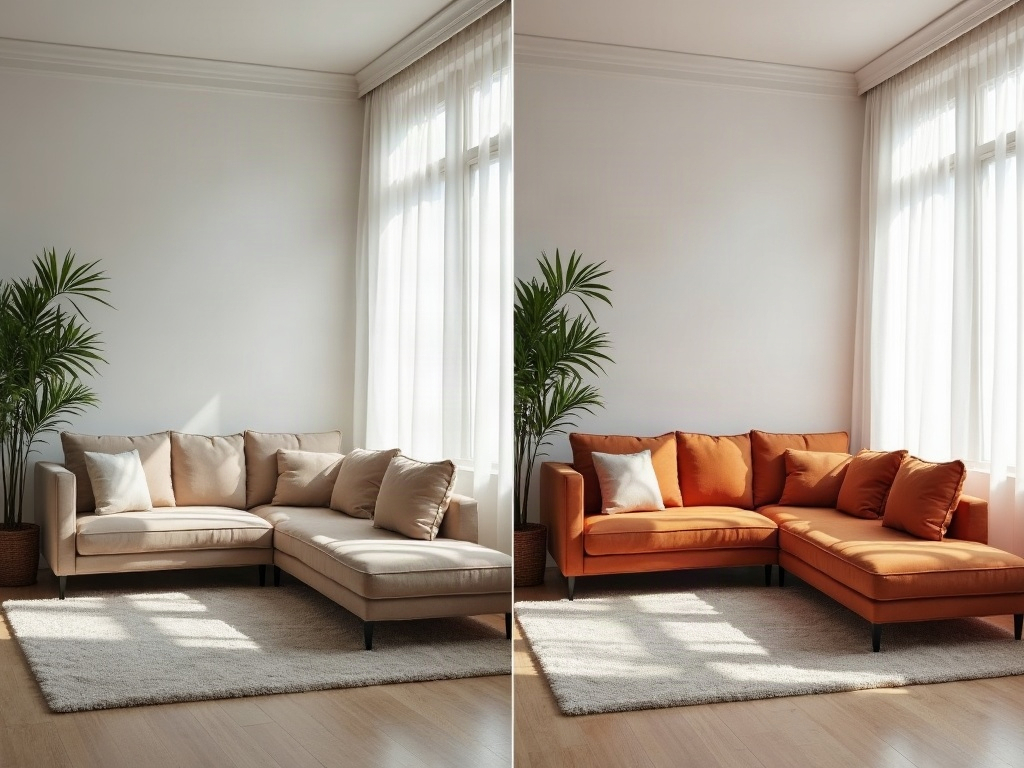
- Edits that stay in their lane. Ask the older models to “change the sofa to green” and they’d often repaint the whole room. The new version does targeted edits — it changes the thing you named and leaves everything else alone.
- Better instruction-following. It holds onto more of your request at once — style, layout, number of objects, and mood — instead of quietly dropping half of what you asked for.
Put together, those three shifts move AI images from “fun but unreliable” to “good enough to ship for everyday needs.”
The text upgrade is the headline
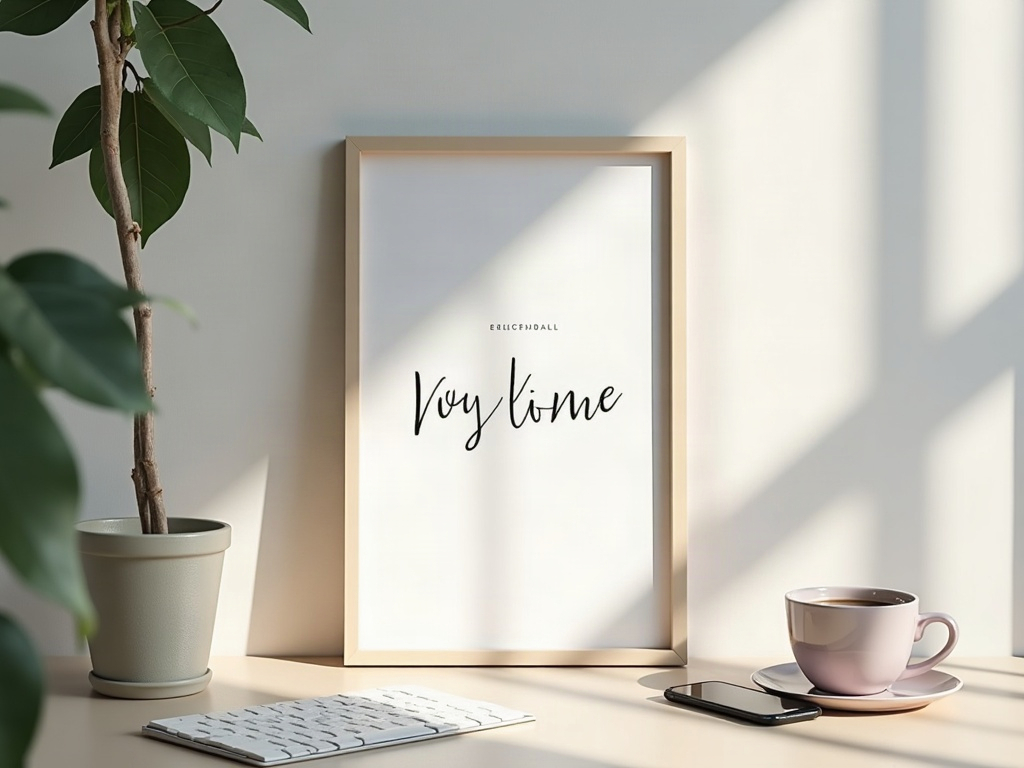
It’s hard to overstate how much the readable-text fix opens up. A huge share of real-world image needs involve words: a social post with a quote, a simple flyer, a product label mockup, a thumbnail, a birthday card. Before, you had to generate a blank design and drop text on afterward in another app. Now you can describe the whole thing in one go.
The catch: keep the text short and specific. Ask for a headline, a single word, or a short label, and spell out the exact words in quotes in your prompt. Long paragraphs of embedded text still drift — that’s a job for a real layout tool, not an image model.
How to write prompts that work
The model is smarter, but your instructions still steer it. A reliable prompt has four parts: subject, style, composition, and details. Instead of “a coffee shop logo,” try: “a minimalist logo for a coffee shop called ‘Ember,’ warm orange and brown, a simple flame-and-cup icon, clean flat vector style, white background, the word ‘Ember’ in a modern sans-serif.”
Notice what that does: it names the subject, sets the style, describes composition, and pins the exact text. The more you leave unsaid, the more the model guesses — and its guesses are where you lose control. This is the same clarity discipline that makes any AI output better; if you’ve built the habit of writing tight, reusable instructions with ChatGPT Skills, you already know the move.
Editing: the feature you’ll use most
Generation gets the attention, but editing is where Images 2.5 quietly changes your workflow. Upload a photo or a generated image and describe a change in plain language: “make the sky sunset-orange,” “remove the person on the left,” “add a wooden picture frame around this.” Because edits are now targeted, you can layer several small changes without the image degrading into mush.
A practical rhythm: generate a rough version first, then refine it in small, single-purpose edits rather than trying to nail everything in one enormous prompt. It’s faster, and you keep the parts you already like.
Real tasks it’s genuinely good at
Skip the “epic fantasy artwork” demos and think about actual jobs:
- Social media graphics — a quote card, an announcement, a simple promo image with a legible headline.
- Mockups and drafts — show a client a rough logo, packaging, or layout idea before paying for a designer.
- Personal projects — invitations, greeting cards, a custom illustration for a blog post.
- Product visuals — place a product in a new setting, or clean up a background for a listing.
- Explainer visuals — a simple diagram or concept image to make a point clearer.
Where it still falls short (and how to stay honest)
It’s not magic. Fine, dense text still breaks down. Precise brand consistency — the exact same character or logo across many images — remains hard. And it can confidently produce something that looks right but is subtly wrong, especially with hands, reflections, or anything technical. Treat every output as a draft to inspect, not a finished fact.
That habit matters even more as AI-made images spread. The same care you’d apply to catching AI hallucinations in text applies to images: verify before you publish. And with tools now emerging to prove a photo is real rather than AI-generated, being transparent about what you made with AI isn’t just polite — it’s quickly becoming the norm.
The takeaway
ChatGPT Images 2.5 crosses an important line: it’s no longer a novelty you show friends, but a tool that saves you real time on real tasks — the flyer, the mockup, the social graphic you’d otherwise have wrestled with in three other apps. Start small, describe exactly what you want, refine in little edits, and check the result with your own eyes. Used that way, it’s one of the most immediately useful upgrades in everyday AI this year — another small step in letting these tools handle the busywork so you can focus on the ideas.
Sources & further reading:
Related Reading
- Qwen-Image-3.0 Just Dropped: The Free-to-Try AI Image Tool That Actually Gets Text Right
- ChatGPT Can Now Text People For You: What the New Apple Messages Plug-in Does
- Google Pics Is Here: Design by Prompting, Not Dragging — and What It Means for Canva Users